
Step by step
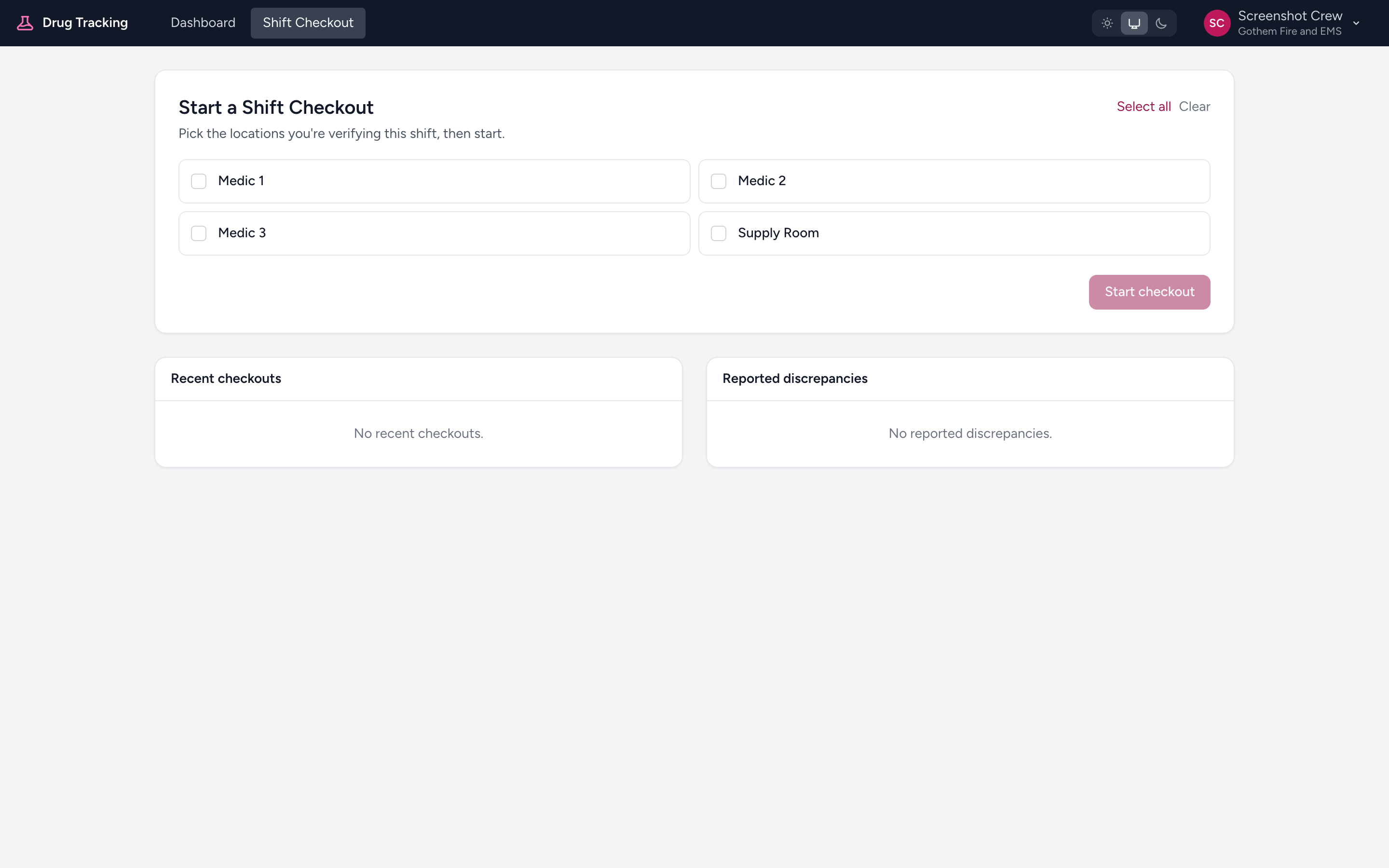
- Open Drug Tracking and click Shift Checkout from the menu.
- Under Start a Shift Checkout, click the checkbox next to each location you are responsible for this shift. You can pick more than one. Use Select all or Clear to do them all at once.
- Any child compartments are included automatically. If Medic 12's drug box has three compartments (Narcotics, RSI, Cardiac), all three are part of the checkout.
- Click Start checkout. The button shows how many locations you picked, for example Start checkout (3).
Seal verification
Some locations are sealed with a numbered tamper-evident seal. Once the checkout is open, each sealed location asks you to confirm the seal. Enter the number printed on the physical seal, then check Seal intact and matches. You cannot verify that location until the seal is confirmed.
What if I pick the wrong location?
Click Cancel at the top of the active checkout. The checkout is kept in your history as cancelled, not deleted.
Tip
Have replacement seals nearby before you start — you may need to record a new seal number for any sealed location when you finish.