
A procedure is anything you did to the patient — from the basic to the advanced (intubation, surgical airway, IO placement). Every procedure gets its own entry on the Timeline.
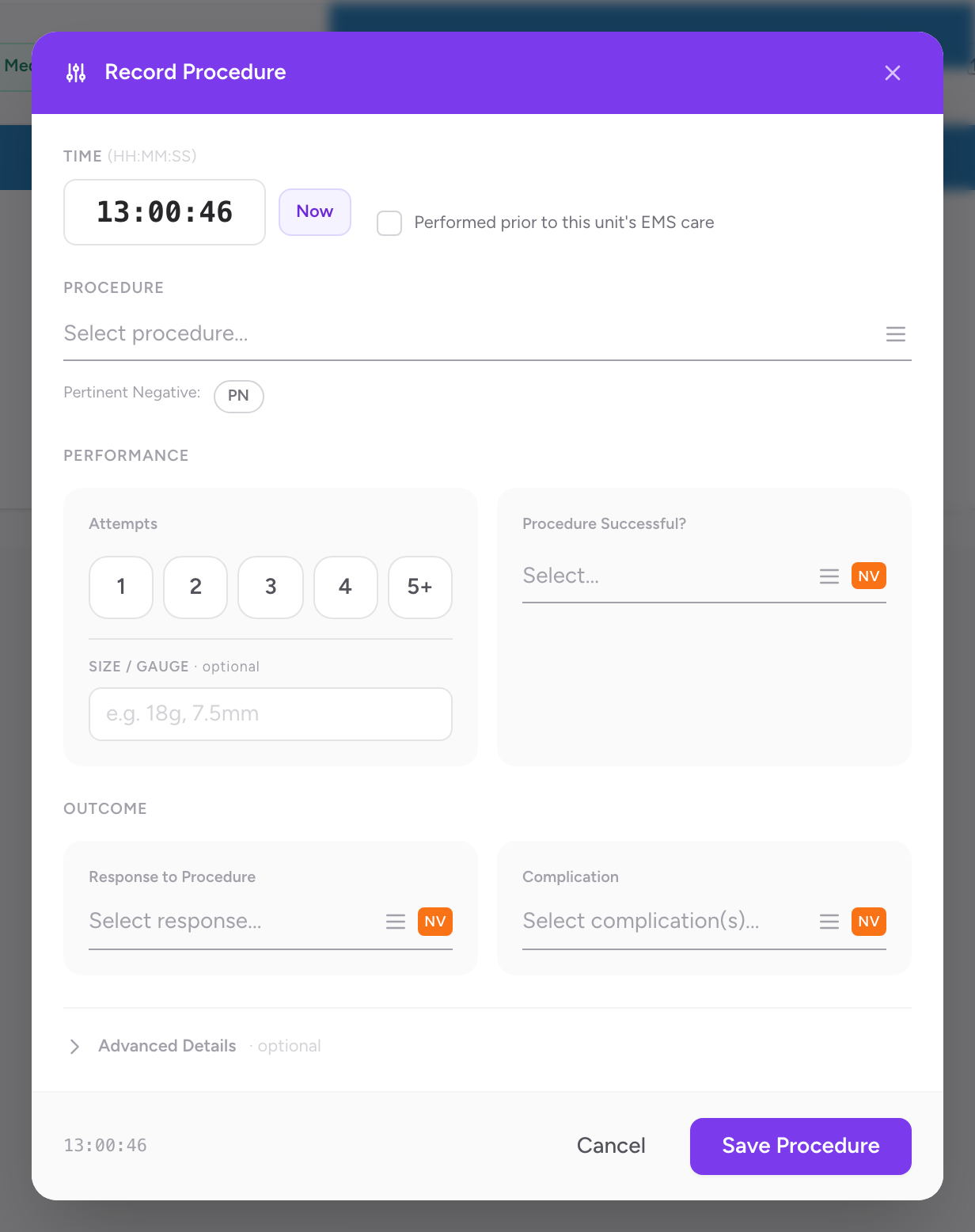
Add a procedure
- On the Timeline tab, click Entry and add a procedure, or switch to Legacy view and click + Procedures.
- The Record Procedure modal opens.
- Pick the procedure from your agency's procedure list. If nothing in the list matches, CloudPCR falls back to a SNOMED search so you can still find the right code.
- Enter the time it was performed.
- Enter the number of attempts.
- Mark whether it was successful.
- Pick any complication.
- Pick the crew member who performed it.
- Click Save Procedure.
High-risk procedures
Procedures like intubation, surgical airway, IO, and chest decompression are high-risk and high-scrutiny. Your QA reviewers and your medical director will look at these closely. Make sure the attempts and complications fields are accurate. If you intubated on the second attempt, put 2 — not 1.
An example
You start an 18-gauge IV in the patient's right antecubital, first attempt successful. Click + Procedures, pick the IV access procedure from your list, enter 1 attempt, Successful, no complication, you as the performer. Save Procedure. Later you draw labs from that line. Add another procedure for the blood draw, 1 attempt, Successful. Both events are on the Timeline in the order they happened.
The transfusion procedure
One procedure is added for you rather than by you. When you record a blood product on the Timeline, a Transfusion of blood procedure appears alongside it automatically. Do not add a second one by hand. See Recording a blood product for how it works.