
Every blank on a form has a kind. The kind decides what the crew can put in it and how it prints. You pick it under Kind in the blank's settings, or when you choose Add a blank.
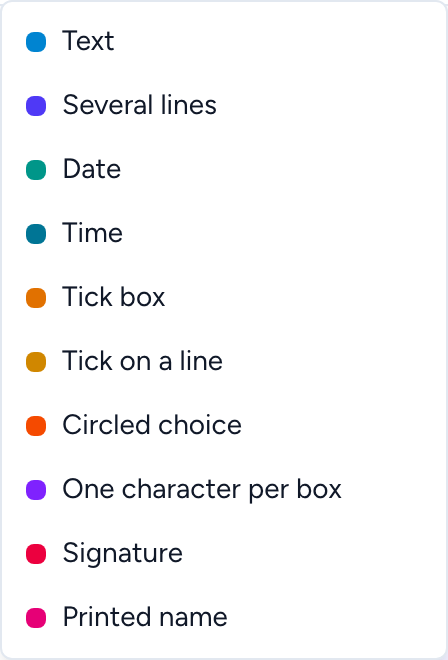
The kinds
- Text: one line of text, such as a name or an incident number.
- Several lines: a bigger area for longer text, such as history or exam findings. Long text wraps and shrinks to fit.
- Date: prints as MM/DD/YYYY. Crews get a Today button.
- Time: prints as HH:MM. Crews get a Now button.
- Tick box: a printed square that gets an X.
- Tick on a line: for forms that print "___ Cash ___ Check". The X goes on the line.
- Circled choice: for forms that say "Y / N (circle one)". The choice gets a circle drawn round it.
- One character per box: for rows of little boxes, such as a Medicare number or a 24-hour time. You set the Number of character boxes, and each character lands in its own box.
- Signature: signed on the screen. See Signature blanks.
- Printed name: the name printed beside a signature. It can take the name from the signature it belongs to.
Choosing the right kind
Look at what the paper form expects a person to write. If a nurse would tick it, it is a Tick box or Tick on a line. If they would circle a printed word, it is a Circled choice. If the form has a row of boxes, one per letter, use One character per box so the characters line up with the printed boxes.
For a tick box or circled choice, you also set when it is marked. See Choosing what fills a blank.