

The recurring schedules page
From the navigation, click Recurring to see all of your agency's repeating schedules in one place. Each row shows:
- Patient name
- Schedule summary
- Pickup time
- Destination
- Date range
- How many upcoming trips are scheduled
- Status — Active, Paused, or Ended
Search by patient name and filter by status to find the schedule you need.
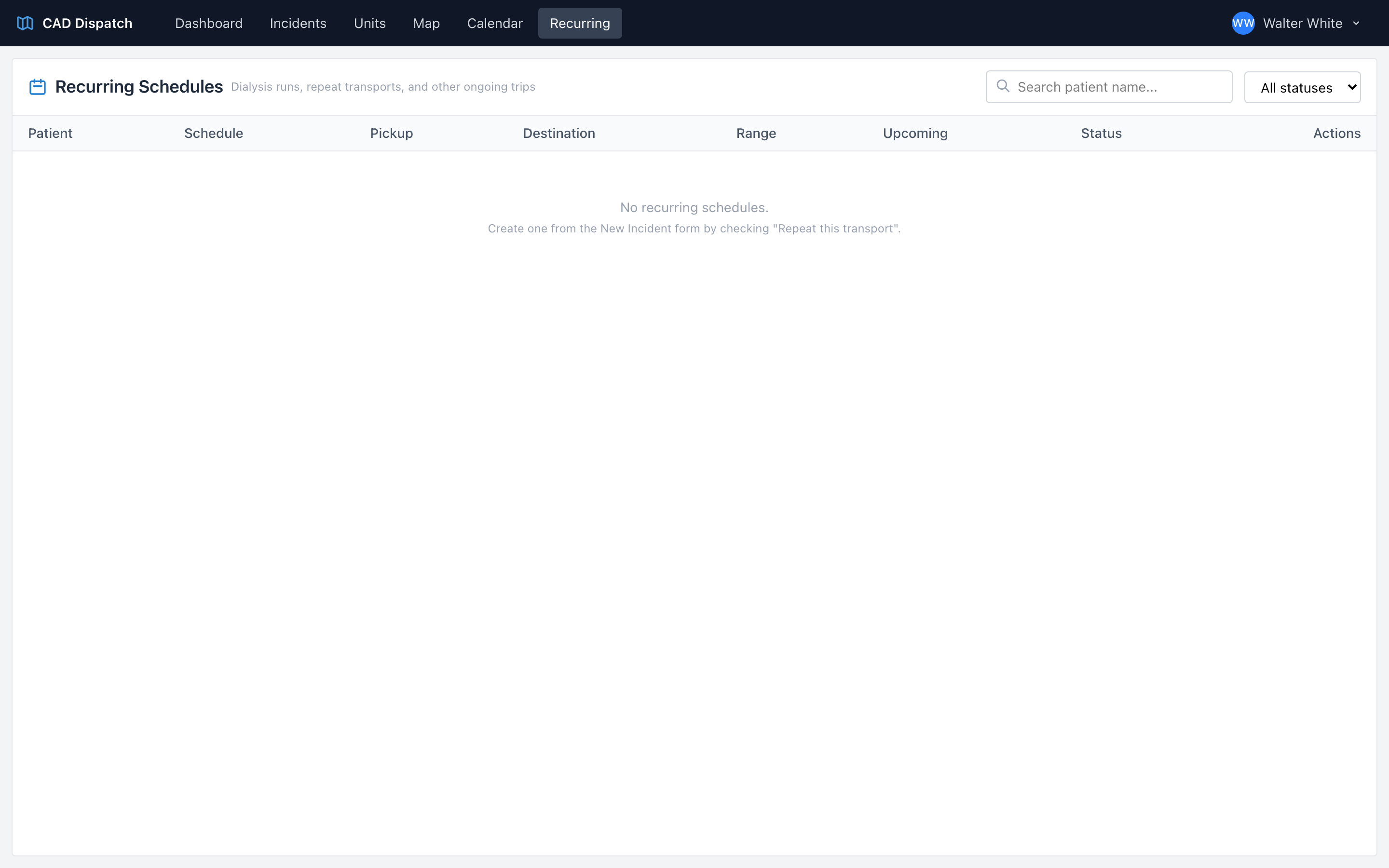
Each row also has three icon buttons on the right — hover to see the tooltip for each: edit, pause (or resume, on paused rows), and end.
Pause
Pause stops generating new incidents while the patient is hospitalized or on vacation. Find the schedule on the Recurring page and click the pause icon in the row. The row flips to Paused status immediately.
Resume
To bring a paused schedule back, find it on the Recurring page and click the resume (play) icon in the row. CAD starts generating incidents again.
End
End permanently ends the schedule — use it when a patient moves, passes away, or switches providers.
- Click the end (stop) icon on the row.
- The End Recurring Schedule dialog opens.
- Optionally type a reason.
- Leave the Cancel any already-generated upcoming incidents that haven't been dispatched yet checkbox on if you want those future trips removed.
- Click End Schedule.
Tip: If a patient is only skipping a few specific dates — like holidays — you do not need to pause the whole schedule. Open the edit dialog and add the dates to Skip dates instead.