
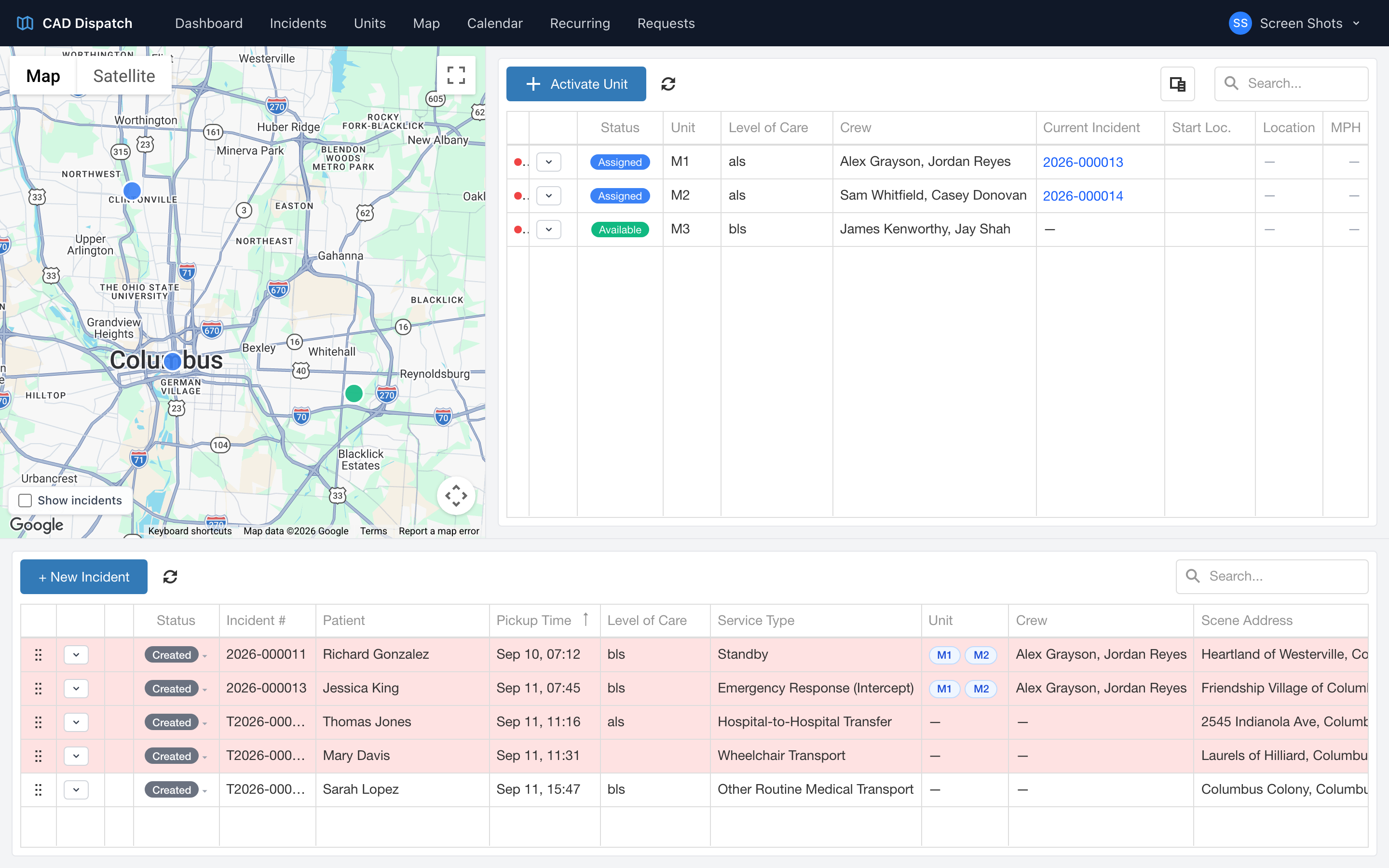
Some calls need more than one truck. A second crew can respond to the same call without you creating a duplicate for them.
Adding another unit
- On the dispatch board, drag the unit onto the call that already has a crew on it.
- The board asks Add another responding unit? and tells you which unit is already on the call.
- Click Add unit.
The confirmation step is deliberate. Dragging a unit onto a call that already has one is far more often a slip than an intention, so it asks before it acts.
What each unit gets
Every responding unit gets its own incident number and its own chart. The call itself keeps one trip, and the board shows each unit against it with its own status and crew.
This means each crew documents what they did, rather than sharing one report between two trucks.
Seeing every unit on a call
Open the call and click the Units tab. Responding Units lists every unit on the call with its crew.
Moving a crew member to another truck
If a provider rides along on another truck partway through a call, add them to that unit so they land on the right chart.
- Open the call and click the Units tab.
- On the unit they moved to, click Add a crew member.
- Start typing their name and pick them from the list.
People already riding another unit on the same call are listed first, since they are usually who you are looking for.
Tip: add the crew member to the truck they actually worked on. The chart follows the unit, so a provider on the wrong unit ends up documenting on the wrong report.