
Before you start: Only agency administrators see the Send Message tab. Messages only reach people who have added and verified a phone number in My Settings.
Send Message texts a short note to people at your agency, like a station closure, a staffing call or a reminder about the monthly meeting.
Step by step
- On the dashboard, click the green tab with the chat bubble, just under the bar in the middle of the page. The Send Message panel drops down.
- Under Roles, click Choose roles and tick the roles you want to reach. Everyone with that role at your agency gets the text.
- Under Users, click Choose people to add specific people. Each name shows the phone number the text goes to.
- Type your text under Message.
- Click Send.
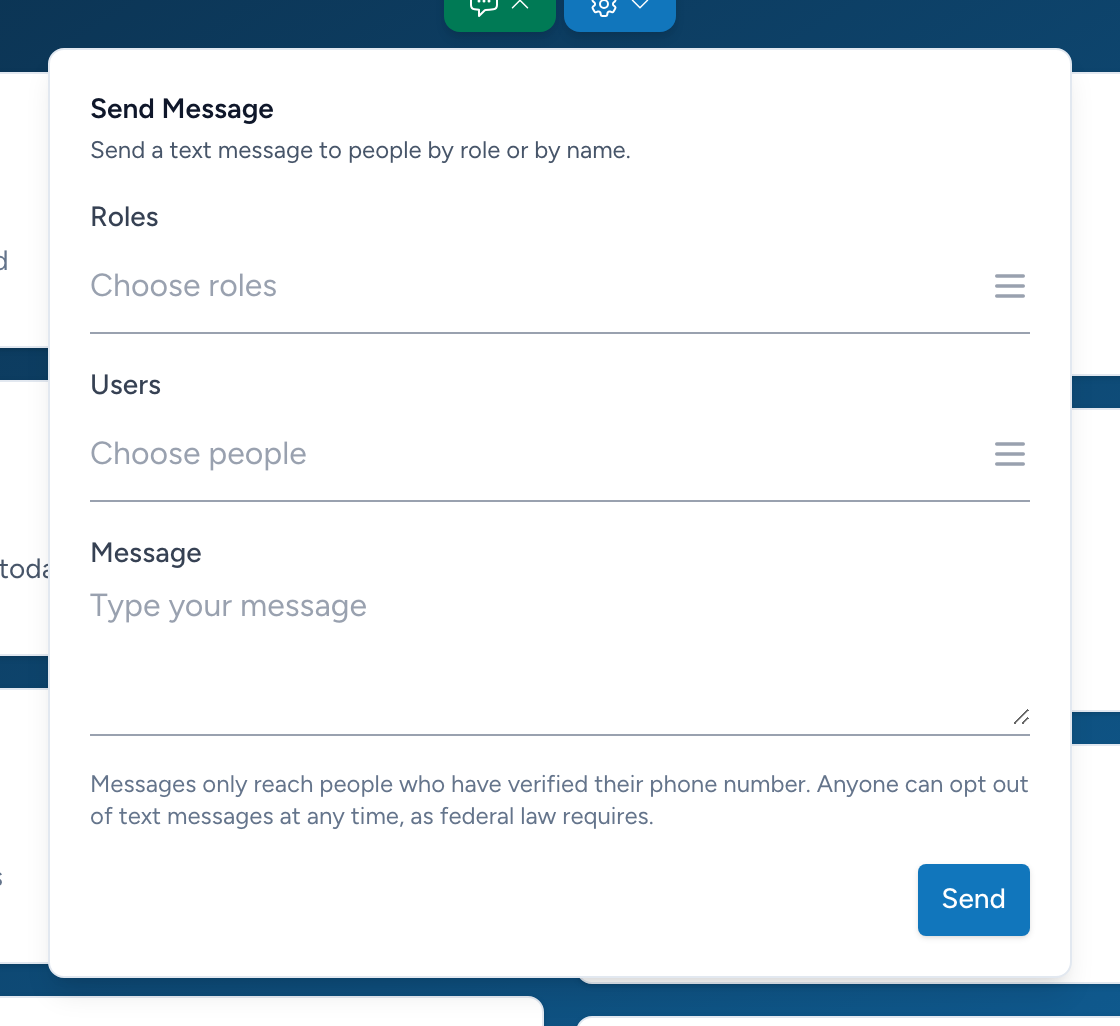
You can use roles, people, or both. If someone is in a role you picked and you also picked them by name, they still get one text.
What happens next
The panel confirms how many texts it queued, for example Queued 12 messages.. They go out over the next few moments, not all in the same second.
- "None of the people you picked have a verified phone number." Nobody you chose can receive a text. Ask them to add and verify their number in My Settings.
- "Please enter a message." The message box is empty.
Good to know
- Anyone can opt out of these texts, as federal law requires. Someone who opted out won't get them even if you pick them.
- Only people with a verified number appear in the Users list. If a name is missing, that person hasn't verified a phone yet.
- Keep it short. A message can be up to 1,600 characters, but long texts arrive in pieces on some phones.