
When to undo an import
Undo an import when the spreadsheet was wrong: the quantities were off, the rows landed in the wrong location, the same file was uploaded twice, or the product names created a pile of duplicates. One click puts the stock back the way it was before the upload.
Before you start: An undo only works while all of the imported stock is still on hand. If crews have already used or moved some of it, the undo is refused and you correct those lines by hand instead (see below).
How to undo an import
- Click Inventory in the menu, then Import.
- If you just ran the import, click Undo this import in the yellow box under the result counts. For an earlier import, scroll to Recent imports and click Undo on its row. The list shows the last ten uploads with the file name, who ran it, and how many rows imported.
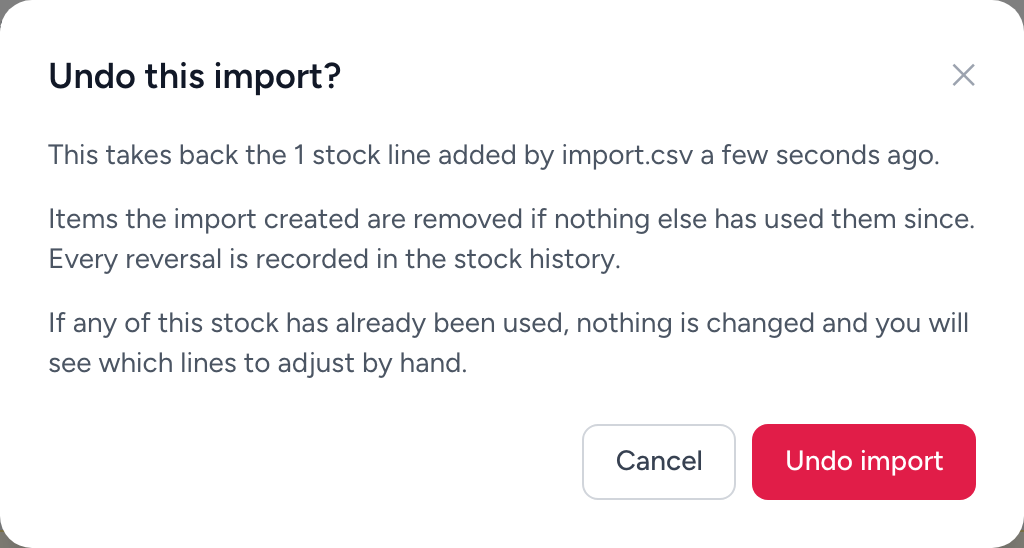
- Read the confirmation, then click Undo import.
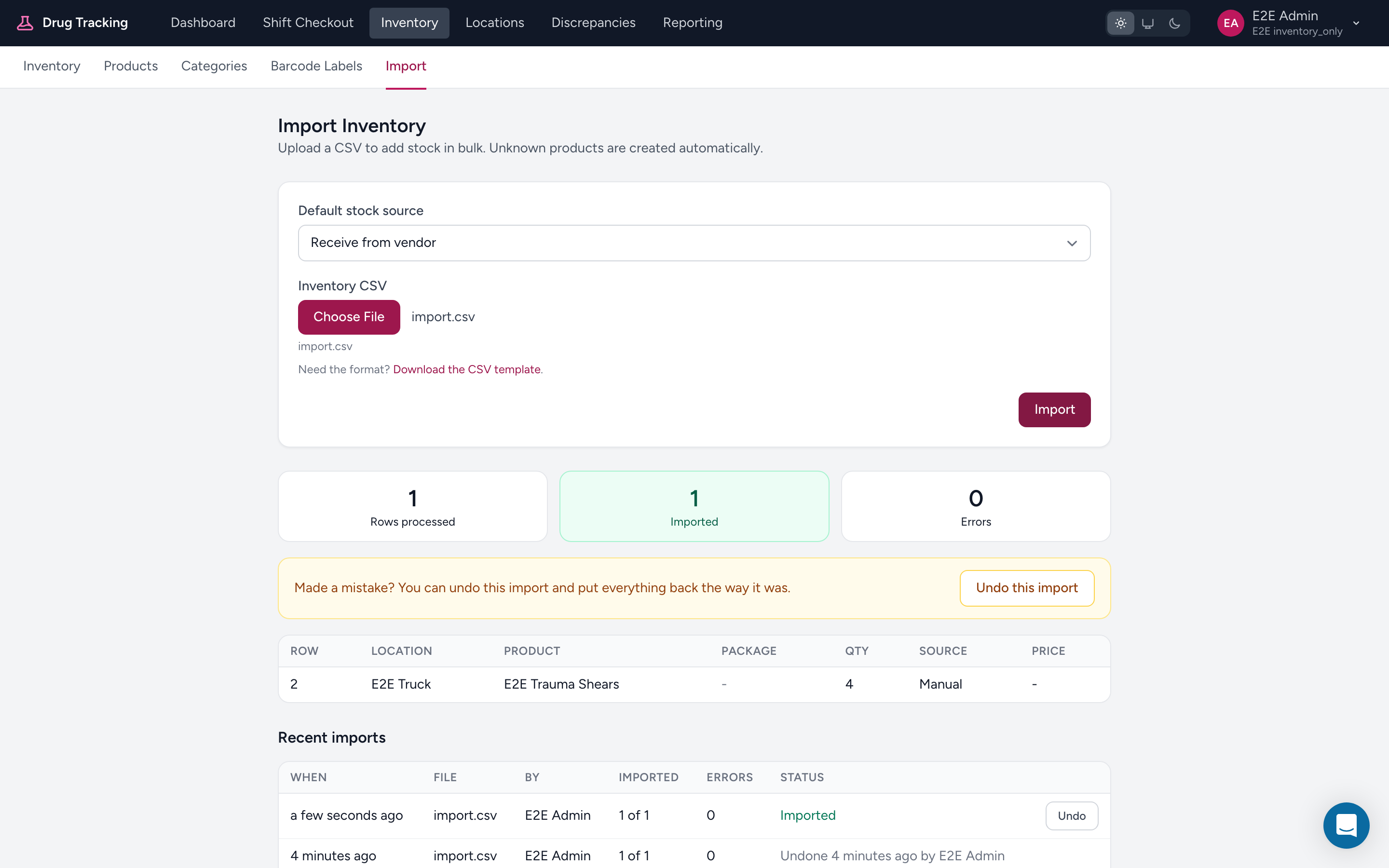
A message at the top of the page confirms what happened, for example "Import undone: 12 stock lines reversed, 3 created items removed." The import's row under Recent imports changes to Undone with the time and the name of the person who undid it, and its Undo button goes away. An import can only be undone once.
Fixing one line instead
If only one row was wrong, do not undo the whole import. Click Fix a line (next to Undo) to see every line of that import with its row number, location, product, lot, expiry, and quantity. Each line has two buttons:
- Undo takes that line's stock back out and leaves every other line alone.
- Fix opens the line's values. Correct them and click Replace line: the old stock is taken out and the corrected row is imported in its place, under the same import.
A line that has been undone shows crossed out in the list. The import's row under Recent imports reads "Imported, 1 line undone" so the change is visible later. The same rule applies as for a full undo: a line whose stock has already been used cannot be undone, and the message names it.
What the undo reverses
- Stock. Each line the import added is taken back out of the same location, lot, and package. The location's history shows the original import line and a matching removal noted "Import #12 undone", so the record stays complete.
- Items the import created. If the importer created a product and nothing else has touched it since, the product is deleted along with its lot records, so your Products page is left as it was. If the product has been used elsewhere since (stock added at another location, a template built around it, a QR label assigned), it is kept and only its imported stock is reversed. The confirmation message tells you how many were removed and how many were kept.
- Categories the import created. Removed if they ended up empty.
- Prices. Any unit prices the import recorded are removed from the product's price history.
When an undo is refused
If any of the imported stock has already been used, the undo makes no changes at all and shows a message like:
Some of this stock has already been used, so the import cannot be undone as a whole. Adjust these lines by hand instead: Cervical Collar, Adult at Medic 5: 2 of the 6 imported still on hand.
The message names every short line, and an Undo the rest button appears under it. Click it to take back every line that is still on hand and leave the short lines exactly as they are, which is usually what you want when the missing stock was removed by hand. If you would rather correct things one at a time, open each location and use Remove on the row (see Adjusting inventory counts).
Worked example
A supply officer imports a 60-row restock file on Monday morning, then notices every quantity was entered in cases instead of units.
- She clicks Undo this import straight from the result screen and confirms with Undo import.
- The page reports 60 stock lines reversed and 4 created items removed (four product names that had been misspelled in the file).
- She fixes the quantities in the spreadsheet, corrects the four names, and uploads it again.
Had she waited until the afternoon, after Medic 3 restocked from the supply room, the undo would have been refused for the collars Medic 3 took, and she would have removed those by hand.
Tips
- Check the result table right after an import. The sooner you undo, the less chance any of the stock has moved.
- Undo before fixing a file and re-importing it. Uploading a corrected file on top of a wrong one doubles the stock. Rows the checker flagged as errors were never added, so a second file with only those rows is safe.
- Undoing is recorded, not erased. Reports and location history still show that the import happened and that it was reversed, and who did both.