
The editor is where you mark every blank on the form and say what fills it. It opens after you upload a form, and from Edit draft on the form's page.
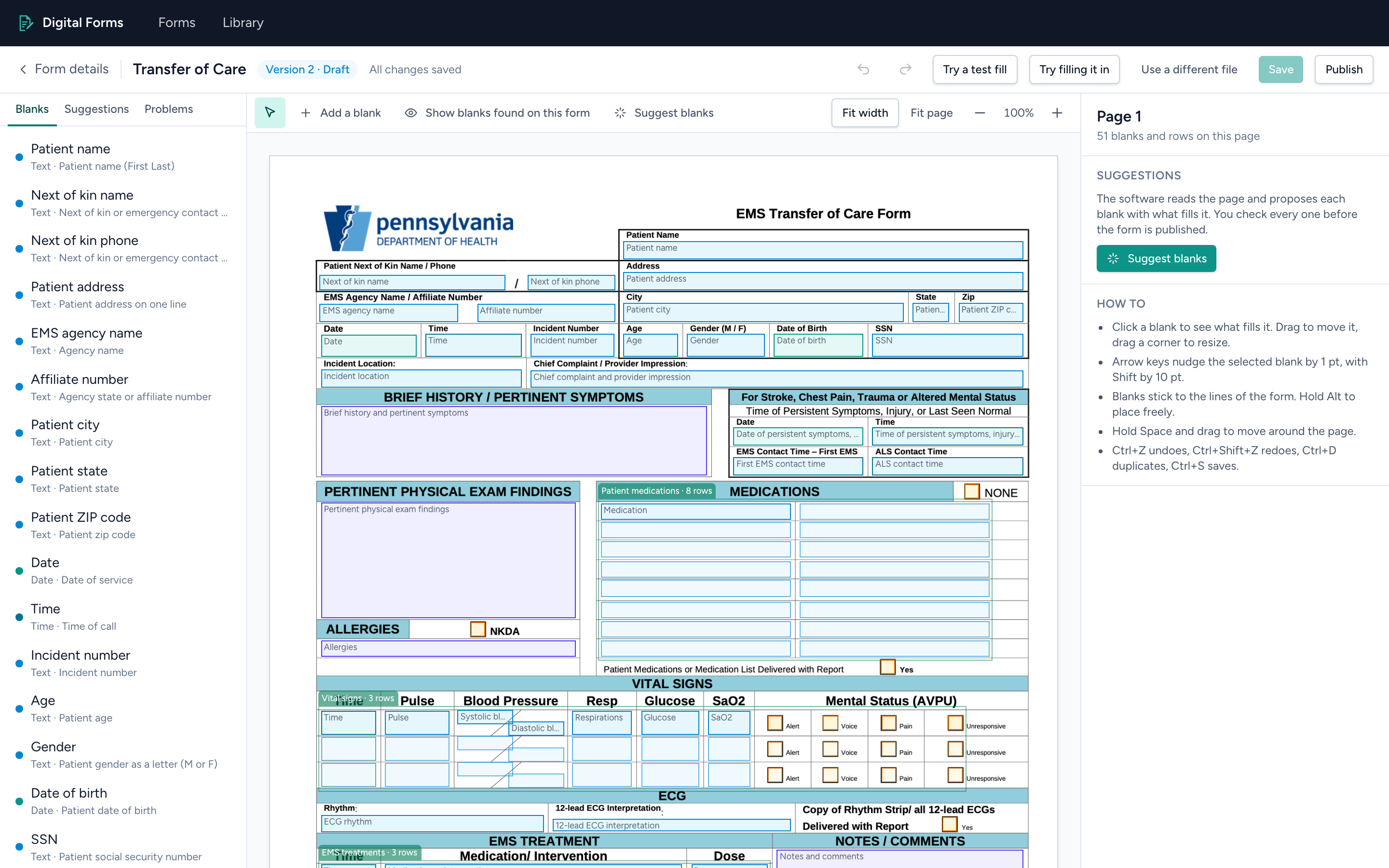
The three columns
- Left: the lists. Three tabs. Blanks lists every blank and repeating row, page by page, with its kind and what fills it. Suggestions holds what the software suggested and you have not checked yet. Problems lists what stops the form being published. Click any item to jump to it on the page.
- Middle: the page. Each blank is a coloured box over the form. The colour shows the kind of blank.
- Right: settings. With nothing selected, it shows the page: Suggestions, any Tables found on this page, and How to tips. Select a blank and it shows that blank's settings.
The tools above the page
- Add a blank: draw a new blank. See Placing, moving and resizing blanks.
- Show blanks found on this form: outlines every line and box the software found when it read the file.
- Suggest blanks: see Suggested blanks.
- Fit width, Fit page, and the zoom buttons. Hold Ctrl and scroll to zoom too.
- On a form with more than one page, the arrows and Page 1 of 2 move between pages.
The buttons along the top
- Form details goes back to the form's page.
- The badge shows the version and whether it is a Draft.
- Undo and Redo.
- Try a test fill and Try filling it in. See Try a test fill and Try filling it in.
- Use a different file removes the uploaded file and every blank on it, so you can start again with a new file.
- Save and Publish.
Saving
The editor does not save on its own. The top bar shows Unsaved changes until you click Save (or press Ctrl+S), then All changes saved. If you try to leave with unsaved changes, it asks Leave without saving? first.
Saving also checks the form. If something would stop it being published, you see "Saved. 2 problems need fixing before this form can be published." and the Problems tab opens. See Text size, required blanks and problems.
When the editor is view only
A blue bar across the top tells you why you cannot change anything:
- "This version is published, so it cannot change." Start a new version from the form's page. See Changing a published form.
- "You can look at this form, but you do not have permission to change it." You have the User role.